
This web page is obsolete and will no longer be maintained.
This web page is obsolete and will no longer be maintained.
« The vOICe Home Page
« The vOICe for Windows
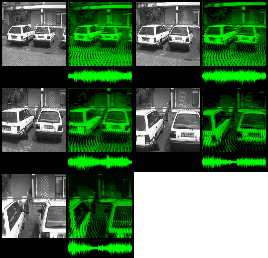 Original camera images (left) and spectrographic reconstructions from
soundscapes (right).
|
In mobile applications of The vOICe for Windows by blind users, it can be cumbersome to access a keyboard for changing important settings such as mute, fast motion and negative video. In wearable computing applications, a more convenient hands-free user interface is needed. Therefore, The vOICe supports speech input, allowing you to talk to your computer and command it to change settings for a best fit to your changing environment or focus of attention. For instance, when starting to walk you say "speed" into the microphone, and The vOICe automatically switches to a doubled scan rate in order to better perceive movements. When halting to orient yourself, you say "speed" again and The vOICe switches back to its default scan rate for better perception of detail. Moreover, you can say "zoom" to zoom into the central part of the scene, or say "inverse" to better hear dark objects on a bright background via the negative video mode, or say "motion" to hear out moving objects through the automatic motion detection mode. You can even speak "say color" to identify the color of anything in the center of the camera view!
This advanced technology is no longer science fiction: it is all available for you today,
at no charge!
The following speech commands are currently recognized by The vOICe Learning Edition software, provided that you have a microphone connected to your computer, and provided that you have suitable SAPI 4.0 compliant speech recognition software installed (more on that below):
| The vOICe Command |
Action |
|---|---|
| "Stereoscopic" | Toggles stereoscopic vision on and off (if registered) |
| "Motion" | Toggles motion detection on and off |
| "Impact" | Toggles collision threat analysis on and off |
| "Mute" | Toggles between muted and not muted |
| "Wordless" | Toggles speech output off and on |
| "Slow" | Toggles between half speed and normal speed |
| "Speed" | Toggles between double speed and normal speed |
| "Track" | Toggles between fourfold speed and normal speed |
| "Zoom" | Toggles between zoomed by factor two and no zoom |
| "Inverse" | Toggles between negative and normal positive video |
| "Edges" | Toggles edge enhancement on and off |
| "Filter red" | Toggles red filter on and off |
| "Filter green" | Toggles green filter on and off |
| "Filter blue" | Toggles blue filter on and off |
| "Filter magenta" | Toggles magenta filter on and off |
| "Filter orange" | Toggles orange filter on and off |
| "Filter yellow" | Toggles yellow filter on and off |
| "Filter cyan" | Toggles cyan filter on and off |
| "Filter skin" | Toggles skin color detection on and off |
| "Say color" | Performs color identification once at central patch |
| "Say light" | Indicate lighting measure once at central patch |
| "Say time" | Tells the time (text-to-speech engine required) |
| "Say date" | Tells the date (text-to-speech engine required) |
| "Say charge" | Tells the battery charge (text-to-speech engine required) |
| "Snapshot" | Take low-resolution snapshot (Control S alias) |
| "Recognize" | Invokes mobile OCR for reading text (Control R alias) |
| "Analyze" | Saves vOICe.bmp and runs analyze.bat (Control X alias) |
| "Hibernate" | Suspend-to-disk (text-to-speech engine required) |
| "Shutdown" | Shut down computer (text-to-speech engine required) |
| "Reset" | Resets all commanded settings to their defaults |
In order to make use of speech recognition, your sound card should allow for
full duplex operation at the soundscape audio settings, meaning that the
card can handle microphone audio input and soundscape output at the same
time. Most modern sound cards fulfill this requirement. Furthermore, in addition
to The vOICe for Windows (the executable
voice.exe), you need to have the Microsoft Speech API 4.0
installed, as well as a SAPI 4.0 compliant speech recognition engine. The latest
SAPI 4.0 version is labelled SAPI 4.0a, but it is otherwise equivalent to and listed as
SAPI 4.0. Please note that according to Microsoft, their newer SAPI 5.0 is neither
upward nor downward compatible with their SAPI 4.0 software and will therefore no
longer work with The vOICe. Although SAPI 4.0 and SAPI 5.0 can coexist on one computer,
they cannot be active at the same time: you need to quit any SAPI 5.0 application
before running The vOICe with its SAPI 4.0 speech support.
Download speech recognition components:
|
The installation order is important. After first installing the speech API file and next the speech recognition engine, you must reboot - even though the installation itself may not indicate that this is required. After rebooting and starting The vOICe, you should now be able to find and activate the above-mentioned "SAPI: vOICe Command (speech recognition)" entry in The vOICe Drivers menu. (If not, make sure that the SAPI interface is not disabled in the dialog that pops up from the Edit | Soundscape Preferences menu when pressing the Advanced button.) SAPI settings will be automatically saved for future sessions, and The vOICe will be continuously listening for your spoken commands, via the microphone connected to your PC. You can disable voice input by deactivating the above-mentioned speech recognition entry "SAPI: vOICe Command (speech recognition)" in The vOICe Drivers menu. During mobile use in a wearable computer, it will be more convenient to leave this entry activated and to simply use a microphone with an on/off switch to immediately enable or disable voice input. With the driver entry active, The vOICe Command Preferences dialog for changing various settings is available under the menu Edit | Speech Preferences | Speech Recognition.
- Download and install the redistributable Microsoft Speech API file spchapi.exe, which is required for interfacing The vOICe for Windows with SAPI 4.0 compliant speech recognition engines running on Microsoft Windows. File size is less than 1 MB.
- Download and install the Microsoft Speech Recognition Engine for PC command and control applications, which is the file mscsrgpcl.exe (or actcnc.exe) that may be obtained via the Microsoft
Speech Engines web page. Unless URLs have changed, you can download directly as
- Reboot, start The vOICe and enable voice input by activating the speech recognition entry "SAPI: vOICe Command (speech recognition)" in The vOICe Drivers menu.

In noisy environments, as is typical for mobile applications, the use of a headset with stereo headphones and a noise cancelling microphone is recommended in order to improve speech recognition. Moreover, the menu Edit | Speech Preferences | Speech Recognition allows you to specify a command prefix. This means that The vOICe will only recognize your command when it is preceeded by a special word, thus reducing the probability of misinterpreting noise for a command. For instance, if you define this prefix to be the word "apply", then saying "apply zoom" will toggle the zoom mode, but only saying "apply" or "zoom" will not. This effectively reduces noise sensitivity and thus increases noise immunity.

Furthermore, via the "User profiles" button in The vOICe Command Preferences dialog, you can enter a dialog where you may select one of up to ten different user profiles for speech recognition. This can be used to account for different hardware setups (including different microphones that you may have), different environments (with different acoustics), and different users. Before training, the speech recognition results of all ten speech profiles are identical, so you should train the speech recognition engine for a specific selected profile and properly label that profile with a description yourself (possibly including certain mnemonics for the microphone volume, the type of environment for which training was done (acoustics), or any other relevant settings).
Download text-to-speech components:
In addition to the installation of a SAPI 4.0 speech recognition engine (and assuming
that you already downloaded and installed at least the above Microsoft Speech API file
spchapi.exe), you can also install
a SAPI 4.0 text-to-speech (TTS) engine for speech synthesis, such as the Microsoft SAPI 4.0a voice for
Mary (msttsf22l.exe; warning: non-Microsoft site;
other:
1
2).
The vOICe will automatically take advantage of such a TTS engine
if it is present, and you will then be able to change settings via the menu Edit | Speech Preferences | Text to Speech.

SayTools alternative for screen reader users:
If you are blind and already use a screen reader such as Jaws or NVDA,
you can instead of the SAPI 4 TTS make use of Jamal Mazrui's
SayTools
(executable saysetup.exe).
SayTools makes that speech from The vOICe runs via your screen reader. NVDA users additionally
need to download the zipped nvdaControllerClient32.dll
and put the unzipped DLL in the same folder as The vOICe executable.
Final remarks:
In case of problems with SAPI components, or if compatibility issues with screen readers or speech recognition programs occur, you can prevent The vOICe from accessing any SAPI speech features by starting The vOICe from the command line or from a batch file with the command line option -nosapi, as in "voice.exe -nosapi". This ensures that The vOICe does not call any SAPI functions.
The vOICe may crash (with segmentation fault error codes such as "SP_SFAS") if you have old SAPI components installed, such as SAPI 2 or SAPI 3 engines. Notably, it was found that the SAPI 2 based Watson speech recognition engine (ASR) from AT&T - as distributed with for instance Kurzweil K1000 - would cause The vOICe to invariably crash at startup, and uninstalling the Watson engine fixed it. Please uninstall all your old SAPI engines - assuming that you do not need them - if you experience crashes! Alternatively, you can use the above-described -nosapi command line option, but then The vOICe will not use any SAPI speech engines.
The speech recognition training dialogs (under the "Train commands" and "Train general text" buttons) may not be fully accessible via your screen reader, in which case you will need a sighted prompter to get through those dialogs and complete the speech training.
Hibernation may require changes in the power management settings of your system, while some systems may refuse to go into hibernation while running from the mains supply.
In case you find that speech recognition no longer works (e.g., after a crash):
On rare occasions, it has been found that crashes in the SAPI speech recognition engine can make that even a reboot does not restore proper speech recognition, and only a reinstall of spchapi.exe and mscsrgpcl.exe (or actcnc.exe) then appears to work. So you are advised to keep a copy of these installation files, just in case. Note that in In Control Panel | Add/Remove Programs, you may find Microsoft Speech Recognition Engine 4.0, Microsoft Text-to-Speech Engine 4.0, and possibly Microsoft Speech API. It may be overkill, but if nothing else works it may be advisable to try and uninstall (Remove) these speech components before installing them again, rather than reinstalling over an existing installation.As an alternative to the above-mentioned Microsoft Speech Recognition Engine, you may be able to use any other Microsoft SAPI 4.0 compliant speech engine. Currently (largely) untested alternative candidates are IBM'sReportedly, the Microsoft speech recognition engines for both SAPI 4 and SAPI 5 can after some time stop responding to speech commands and speech training. This speech engine problem has not (yet) been reported in combination with The vOICe, but if it occurs, a reboot apparently does not fix the problem and the only way to get things working again is to delete the SAPI files AMENGPC.env, AMENGPC.nsc and AMENGPC.spk.
In 8-bit (256 color) display mode, Microsoft speech may crash in something called "VCMD.exe" when leaving The vOICe, or more generally when changing the display mode. This crash is due to some bug in the SAPI engines, since it has also been found with other speech applications, but it seems relatively harmless in that it does not require a reboot but merely a restart of the application.
ViaVoice speech recognition engine,
or Dragon
Note: it was found that having IBM Home Page Reader 3.0 installed - which includes ViaVoice Outloud 5.0 text-to-speech engines - regularly results in crashes when The vOICe is started, even if only the Microsoft SAPI voices are used. The vOICe itself does not crash, since the crash only occurs in an external Microsoft SAPI 4.0 component named "Vcmd". Simply restarting The vOICe often helps, while uninstalling IBM Home Page Reader (HPR) 3.0 and all of its ViaVoice Outloud 5.0 text to speech engines was found to cure all problems. The exact reason why IBM HPR interferes with regular SAPI 4.0 text-to-speech operation is not known. Preliminary user reports indicate that the problem may be solved with later versions of HPR, starting with HPR 3.02.
